Android Single Item Selection Dialog
Dialog are used for User Some piece of information for user that what you want to do, or user enter any wrong operation on system then dialog are displayed for output that you do any exceptional command .
We used it for Selecting single choice and multiple option.
<br />
<relativelayout xmlns:android="http://schemas.android.com/apk/res/android"
xmlns:tools="http://schemas.android.com/tools"
android:layout_width="match_parent"
android:layout_height="match_parent" ><br />
<br />
<Button
android:id="@+id/button1"
android:layout_width="wrap_content"
android:layout_height="wrap_content"
android:layout_centerHorizontal="true"
android:layout_centerVertical="true"
android:text="Show Dialog" /><br />
<br />
</RelativeLayout><br />
<br />
We add single button when user click on this button Dialog will be displayed and select desired choice .
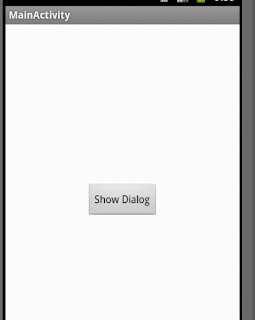
Now we want to add src for java class code . where we add button clicked listener. When user clicked the button it will called showDialg() method. In showDialg() method we write the code snippet of Dialog and assign array of commandArray for multiple choice.
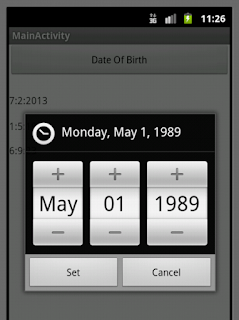
Now the following snapshot show to user operation.


Download Source Code Download
We used it for Selecting single choice and multiple option.

Now we want to add src for java class code . where we add button clicked listener. When user clicked the button it will called showDialg() method. In showDialg() method we write the code snippet of Dialog and assign array of commandArray for multiple choice.
import android.os.Bundle;
import android.app.Activity;
import android.app.AlertDialog;
import android.app.Notification.Builder;
import android.content.DialogInterface;
import android.view.Menu;
import android.view.View;
import android.widget.Toast;
public class MainActivity extends Activity {
private String[] commandArray=new String[] {"Creat","Delete","Rename","Download"};
@Override
public void onCreate(Bundle savedInstanceState) {
super.onCreate(savedInstanceState);
setContentView(R.layout.activity_main);
findViewById(R.id.button1).setOnClickListener(new View.OnClickListener() {
public void onClick(View arg0) {
showDialog();
}
});
}
private void showDialog()
{
android.app.AlertDialog.Builder builder = new AlertDialog.Builder(this);
builder.setTitle("Single Choice");
builder.setItems(commandArray, new DialogInterface.OnClickListener() {
public void onClick(DialogInterface dialog, int which) {
Toast.makeText(MainActivity.this,
commandArray[which] + " Selected", Toast.LENGTH_LONG)
.show();
dialog.dismiss();
}
});
builder.setNegativeButton("cancel",
new DialogInterface.OnClickListener() {
public void onClick(DialogInterface dialog, int which) {
dialog.dismiss();
}
});
AlertDialog alert = builder.create();
alert.show();
}
}
import android.app.Activity;
import android.app.AlertDialog;
import android.app.Notification.Builder;
import android.content.DialogInterface;
import android.view.Menu;
import android.view.View;
import android.widget.Toast;
public class MainActivity extends Activity {
private String[] commandArray=new String[] {"Creat","Delete","Rename","Download"};
@Override
public void onCreate(Bundle savedInstanceState) {
super.onCreate(savedInstanceState);
setContentView(R.layout.activity_main);
findViewById(R.id.button1).setOnClickListener(new View.OnClickListener() {
public void onClick(View arg0) {
showDialog();
}
});
}
private void showDialog()
{
android.app.AlertDialog.Builder builder = new AlertDialog.Builder(this);
builder.setTitle("Single Choice");
builder.setItems(commandArray, new DialogInterface.OnClickListener() {
public void onClick(DialogInterface dialog, int which) {
Toast.makeText(MainActivity.this,
commandArray[which] + " Selected", Toast.LENGTH_LONG)
.show();
dialog.dismiss();
}
});
builder.setNegativeButton("cancel",
new DialogInterface.OnClickListener() {
public void onClick(DialogInterface dialog, int which) {
dialog.dismiss();
}
});
AlertDialog alert = builder.create();
alert.show();
}
}
Now the following snapshot show to user operation.


Download Source Code Download
this post is very usefull... helpme on understand AlertDialog tricks.
ReplyDeletethanks.
Thanks for appreciation ...!
ReplyDelete